
For most people, AI still feels like something you open intentionally.
You go to a website, paste text, ask a question, then go back to what you were doing. That model worked at first, but it is already starting to feel outdated.
The real shift happening now is not “AI as an app.” It is AI embedded directly into the tools you already use every day. And the most overlooked of those tools is your web browser.
Think about where your time actually goes. Reading articles. Reviewing documents. Comparing options. Researching ideas. Jumping between tabs. The problem is not a lack of information. It is too much information, spread across too many tabs, with too little time to process it well.
An AI-powered browser changes this dynamic. Instead of copying and pasting text into another tool, the AI works alongside you as you browse. It can summarize what you are reading, explain dense language, and help you turn information into something usable without ever leaving the page.
In this article, we will break down what AI-powered web browsers actually are, how to install and use them, and which options tend to fit different working styles best.
Disclaimer: While these are general suggestions, it’s important to conduct thorough research and due diligence when selecting AI tools. We do not endorse or promote any specific AI tools mentioned here. This article is for educational and informational purposes only. It is not intended to provide legal, financial, or clinical advice. Always comply with HIPAA and institutional policies. For any decisions that impact patient care or finances, consult a qualified professional.
What Is an AI-Powered Web Browser?
Traditional browsers vs. AI-powered browsers
A traditional browser does one job well: it displays information. You open a page, read it, and decide what to do next. All interpretation, synthesis, and action happens in your head or in another tool.
An AI-powered browser adds a second layer. It does not just show information. It helps you understand it and act on it while you are still reading. The browser becomes an assistant, not just a window.
This shift mirrors how many physicians are starting to think about AI in general, not as a replacement, but as a support layer that improves workflow and decision-making, similar to how teams are learning to build an AI-enabled team in your practice.
What “AI inside the browser” actually means
This does not require technical knowledge to use. In practical terms, AI inside the browser can read the page with you. It can summarize long articles, explain complex language in simpler terms, and help turn what you are reading into notes, emails, or action steps.
The key difference from tools like ChatGPT is context. You do not leave the page. The AI reacts to what is already on your screen and works with that information directly.
It’s the same principle behind using AI to reduce cognitive load and reclaim time, much like the productivity gains discussed in how physicians can save 10 hours a week with AI.
Microsoft Edge with Copilot
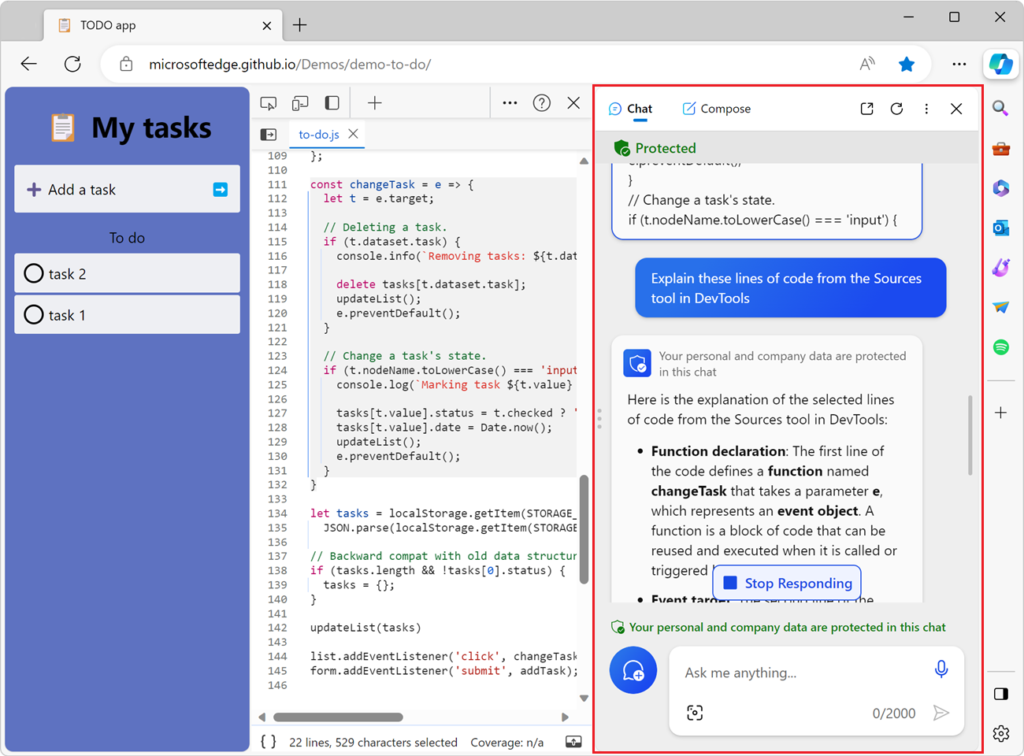
Microsoft Edge is a standard web browser with Copilot built directly into a sidebar. The goal is simple: help you understand and use what you are reading online without switching tools.
How to install and use it
Installation is straightforward. You download Edge from Microsoft’s website and install it like any other browser on Windows or Mac.
To use Copilot, open any webpage and click the Copilot icon in the sidebar. You can ask simple questions about the content on the page, request a summary, or ask for clarification on specific sections.
Used thoughtfully, this kind of AI support aligns with broader guidance on how physicians can spot bad AI tools and focus on what genuinely improves clarity rather than adds noise.
Edge and Copilot are free to use for everyday browsing. There are optional paid Copilot plans, but they are not required for most practical use cases.
Real-world use cases
- Summarizing news articles without reading every word
- Comparing products or services quickly
- Translating or simplifying complex language
- Turning articles into notes or briefs
- Drafting emails based on webpage content
- Speeding up market or competitor research
Arc Browser
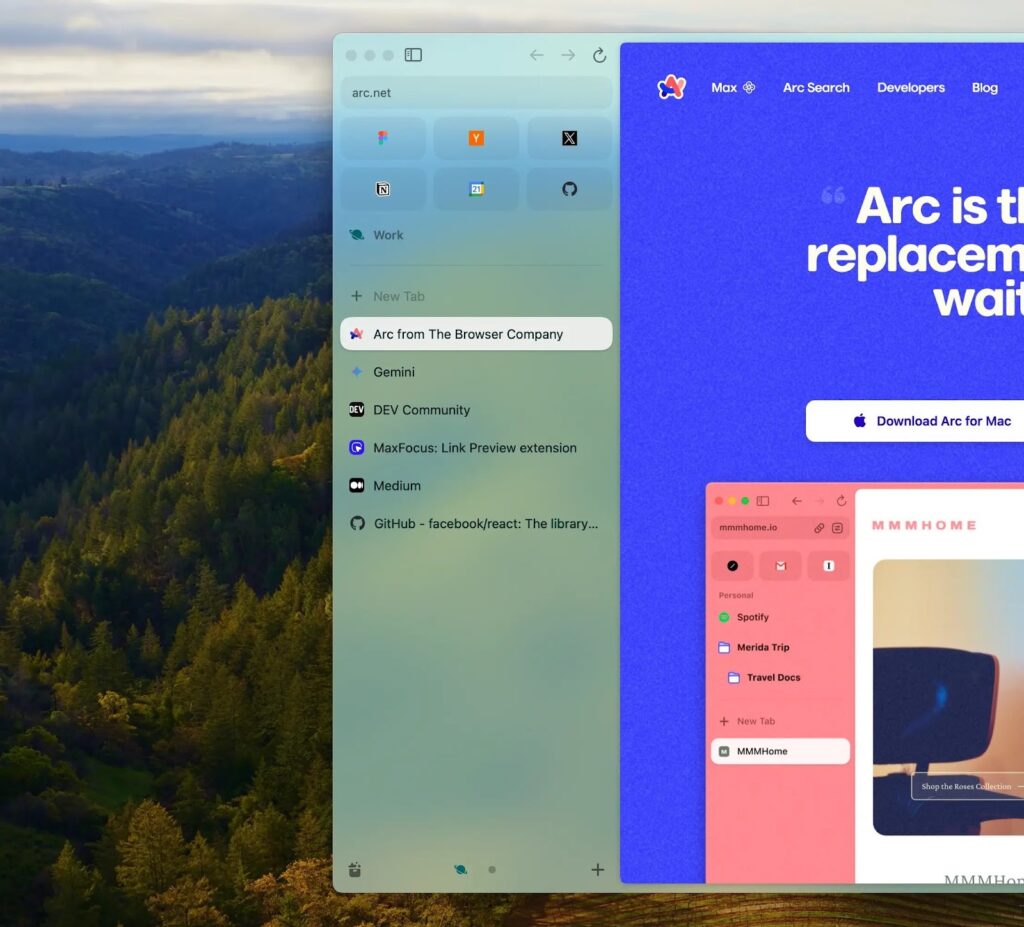
Arc Browser is a redesigned browser focused on organization, focus, and reducing mental clutter. AI is present, but it works quietly in the background to keep things clean and manageable rather than constantly prompting you.
How to install and use it
You can download Arc from arc.net. It is available on both Mac and Windows.
Arc organizes tabs vertically in a sidebar instead of across the top. Pages can be summarized instantly, and “Spaces” allow you to separate different areas of life and work so everything does not blend together. Arc is free.
For physicians juggling clinical work, business ideas, and personal life, this kind of separation supports the same goal as building AI skills physicians should focus on for the future of medicine.
Real-world use cases
- Planning trips or major decisions
- Keeping personal research organized
- Reducing information overload
- Managing multiple projects at once
- Organizing research by client or initiative
- Staying focused during deep work sessions
Brave Browser with Leo AI
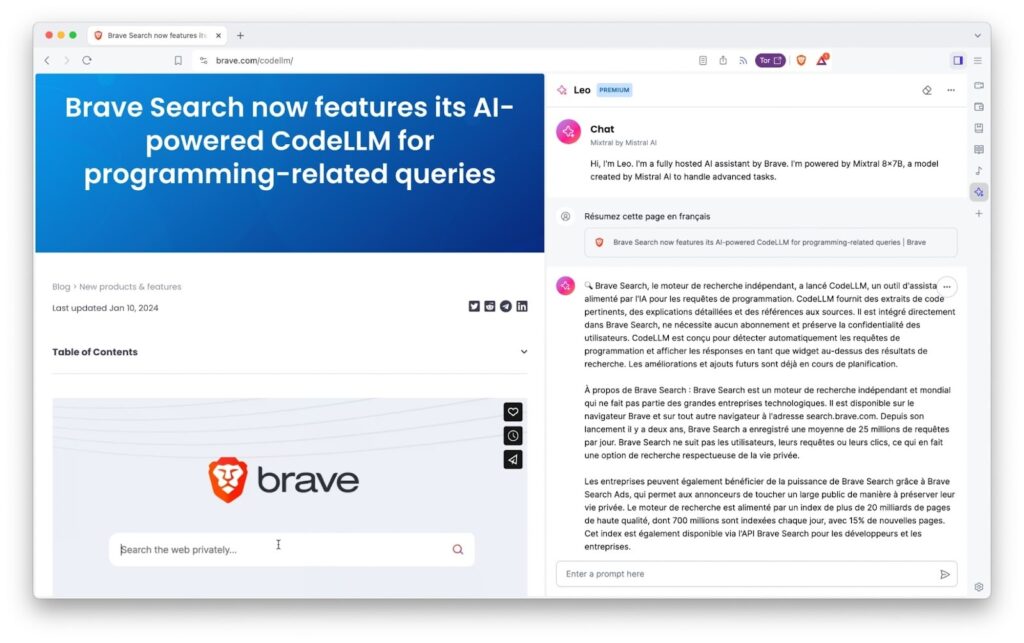
Brave Browser is a fast, privacy-first browser with built-in AI assistance called Leo AI. It is designed to reduce tracking, ads, and background noise while you browse.
How to install and use it
You download Brave from brave.com and install it like any standard browser.
To use Leo AI, open a webpage and click the AI icon. You can ask for summaries, explanations, or help understanding what you are reading. Brave is free to use. There are optional paid AI features, but they are not required for basic workflows.
This approach pairs well with physicians who want the benefits of AI without compromising trust, a concern often addressed in discussions about AI safety and compliance for doctors.
Real-world use cases
- Reading articles without intrusive ads
- Faster, cleaner browsing
- Less visual distraction when consuming news
- Research without aggressive tracking
- Quick summaries of reports or articles
- Cleaner workflows during focused work
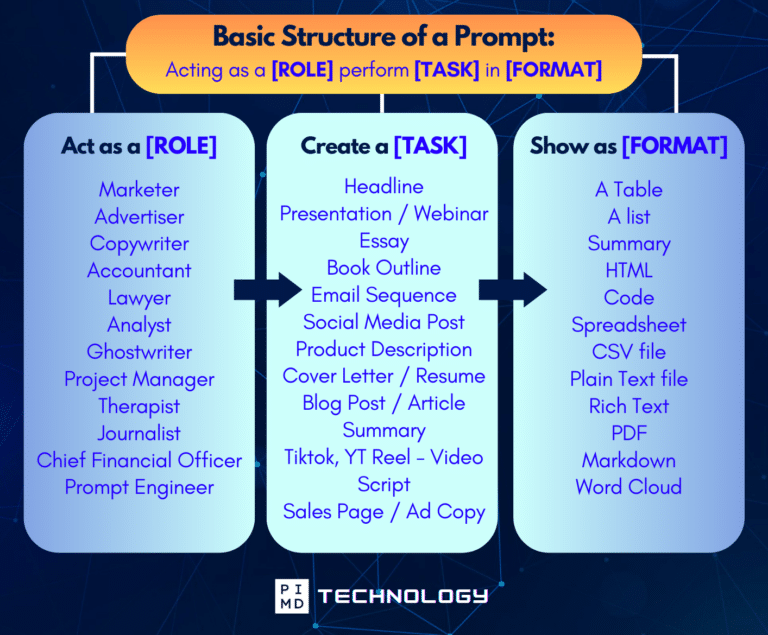
Unlock the Full Power of ChatGPT With This Copy-and-Paste Prompt Formula!
Download the Complete ChatGPT Cheat Sheet! Your go-to guide to writing better, faster prompts in seconds. Whether you’re crafting emails, social posts, or presentations, just follow the formula to get results instantly.
Save time. Get clarity. Create smarter.
Why Physicians Should Try AI Browsers
After a full day in the hospital, the last thing you would want is to waste another hour Googling through rabbit holes just to find one clear answer. You’re tired, spent, and still have 10 other things that need doing.
That’s why I believe small things like this actually made a difference.
They do take the edge off. Streamlining the noise, helping you make sense of info faster, and saving your focus for the stuff that really matters.
And honestly? That matters beyond just clinical work. Whether you’re reading through contracts, learning a new investment strategy, or researching something for the kids, having a browser that thinks a little more like you does make everything smoother. Over time, those small efficiencies add up, just like the compounding effect described in how to build an AI assistant that helps prevent burnout.
It’s about flow. The best tools are the ones that quietly remove friction and help you take action without burning out. And in this stage of life? I’ll take all the ease I can get.
Let me know what you think. As always, we’re always rooting for you here at PIMD!
Download The Physician’s Starter Guide to AI – a free, easy-to-digest resource that walks you through smart ways to integrate tools like ChatGPT into your professional and personal life. Whether you’re AI-curious or already experimenting, this guide will save you time, stress, and maybe even a little sanity.
Want more tips to sharpen your AI skills? Subscribe to our newsletter for exclusive insights and practical advice. You’ll also get access to our free AI resource page, packed with AI tools and tutorials to help you have more in life outside of medicine. Let’s make life easier, one prompt at a time. Make it happen!
Disclaimer: The information provided here is based on available public data and may not be entirely accurate or up-to-date. It’s recommended to contact the respective companies/individuals for detailed information on features, pricing, and availability. All screenshots are used under the principles of fair use for editorial, educational, or commentary purposes. All trademarks and copyrights belong to their respective owners.
Images used in this article are for editorial and informational purposes only and are sourced from publicly available product pages and promotional materials provided by their respective companies. Microsoft Edge with Copilot images courtesy of Microsoft. Arc Browser images courtesy of The Browser Company. Brave Browser and Leo AI images courtesy of Brave Software, Inc. All product names, logos, and interface designs are trademarks or registered trademarks of their respective owners. No affiliation or endorsement is implied.
If you want more content like this, make sure you subscribe to our newsletter to get updates on the latest trends for AI, tech, and so much more.
Further Reading

